Showing posts with label Backup-Recovery. Show all posts

Sunday, April 28, 2013

R-Studio - R-Studio 6.3 build 153957 Portable


R-Studio 6.3 build 153957 Portable is a family of powerful, cost-effective disk recovery software. Originally developed by R-Tools Technology, Inc. for experienced data recovery professionals, R-Studio has been redesigned as a scalable, user-friendly all-in-one data recovery tool. By coupling our most advanced file recovery and disk repair technology with an intuitive user-interface, R-Studio provides enterprise and professional-level data recovery specialists the tools they need without hindering the experience of entry-level users.

R-Studio runs on Mac, Windows, and Linux * and can recover data from local disks, removable disks, heavily corrupted disks, unbootable disks, clients connected to a local area network or the Internet. As a highly scalable, flexible, and deployable data recovery solution, R-Studio is an invaluable tool for data recovery operations large and small.

No matter the platform of the host or client or the physical location of the disk, R-Studio can quickly and effectively recover lost data from damaged, formatted, repartitioned, or deleted disks.

Download:


How to Download???
1. Click on the download link
2. Wait for few seconds and then click on
https://blogger.googleusercontent.com/img/b/R29vZ2xl/AVvXsEhaVdP2cSf6QypLIvEzUV6nQ_HmVCqNZBFwCTE0ikzvrBy1XVWHq2M4ii6quo0PoWjP1OBhSl8sR8mBqxXQ1I6XnZ15Sd2J7Mv8eAmAhietudLb1BxJ7cnYDfveL_b7sD0B_b0CTkaCtv0/s1600/45345b.png
pass unrar : congdong-tinhoc.blogspot.com


Sunday, January 20, 2013

Ophcrack USB Booting Windows Password Recovery for Windows XP or Vista


We have already seen using Ophcrack Live CD for Cracking Windows XP and Windows Vista Passwords. The thing is that now a days we do not use CDs anymore, we use USB drives for our day to day activities. Now what if you want to run Ophcrack from your USB drive instead of wasting money on a CD or if your CD ROM Drive is not working? Moreover using USB drives are more convenient and common these days. Here I have an Ideal solution for this question. But if you are not interested in recovering the password or you simply want to reset or delete the password then there is much easier technique which requires only a 3 MB file instead of Ophcrack. Just see how to Reset windows Password Using a USB drive or a CD
In this method we will be using a program called 7-ZIP for extracting the ISO file and some batch files for making the drives bootable.
USB Requirement:
  • Minimum 512 MB for Windows XP
  • Minimum 1 GB for Windows Vista Or Windows 7 Beta
  • Format: FAT32
I have tried this method in Windows XP, Windows Vista, and Windows 7 Beta and it works perfectly fine. Follow the steps below:
Step 1: Download the ISO File For Ophcrack Live CD 2.1.0 From the links below: (Choose according to your operating system). If you have already downloaded skip this step.
Windows XP:
Size: 452 MB
Windows Vista or 7:
Size: 532 MB
Step 2: Download the ZIP File For making USB boot version of Ophcrack Live CD From the link below:
Size: 414 KB
usbboot.zip

Step 3
: Extract the usbbo
ot.zip file at any location of your computer, not in the USB drive.
Step 4: Copy the Ophcrack Live CD ISO file to the usbboot folder. Double Click the USBOphcrack.bat (ExtractophIso.bat) file.
Click here to View Ophcrack Usb boot image
Step 5: Type the letter of your USB drive and press Enter (The USB Drive should be Formatted with FAT32 File system before starting the process). Here in my case the Drive letter is ‘h’.
Click here to View Select Drive Image
Step 6: Wait for the Extraction process to complete. Follow the on Screen Instructions given by the command prompt as shown below.
Click Here to view Extraction Progress image
Click here to view makeusbboot.jpg
Click here to view usbbooting.jpg
Step 7: Now restart the System. You need to set the boot order to Boot from USB Drive as the first option if you have not set USB Drive as the first option. To do this you need to go to bios setup and change the order. For most of the systems the keys like DELETE, F10, F2, F12 etc are used for going to the Bios setup. But here I have used the Boot Menu Key which will show the available boot options during start up. For my System(HP) the boot menu key is Esc. For Compaq Systems it is usually F9. So if you know the Boot menu key then no need to change the order. Just Select USB Drive from the menu.
Click here to view bootmenu.png
Step 8: Now after the boot from USB Drive you can follow the Steps 4 to Step 7 given in the previous post:
Windows Password Recovery Crack Windows XP or Vista Password Using Ophcrack

IMPORTANT:

1. If you are not interested in recovering the password or you simply want to resetthe password then there is much easier technique which requires only a 3 MB file instead of Ophcrack. Just visit the link to see how it works:http://congdong-tinhoc.blogspot.com/2013/01/reset-windows-xp-vista-7-password-using.html
2. The windows vista live CD works for Windows 7 Beta Build 7000 also. There is no official release for Windows 7 yet.
3. This is for information purposes only. We are not responsible for any damages or illegal acts resulting from this information.
4. The information provided here should be used for legal purposes only.
5. Ophcrack is a legal open source program. Visit http://ophcrack.sourceforge.net/ for more details. Click Here to Read the Terms of Use.
6. The method given here may work for previous versions of Ophcrack Live CDalso. Paste the ISO file in the OphcrackUSBboot folder and continue the process.
7. If your motherboard or your BIOS does not support USB diskette Booting then this method will not work.

Reset Windows XP, Vista, 7 Password Using USB Drive or CD


A lot of methods are available to recover or reset the Windows password. The famous Ophcrack is used for recovering the password. Even i have posted about using Ophcrack. But the problem is that its bulky in size. We need to download a file of size 500MB to recover the password. So I thought why to recover a lost password, instead why cant we simply reset or delete the password using a 3 MB file open source program.  That is what this post is about. I have not found any other method simpler than this one, it resets your password in the blink of an eye.
The method uses an open source program called Offline NT Password & Registry Editor. We can use a USB Disk Drive (Pen Drive) or burn a bootable CD for this method.
Follow the Steps below:
Step 1: Download the cd080802.zip file from the link below and extract it. It contains an ISO file.
Size: 3.15 MB
http://pogostick.net/.../ntpasswd/cd080802.zip (Updated Working Link 13-01-10)
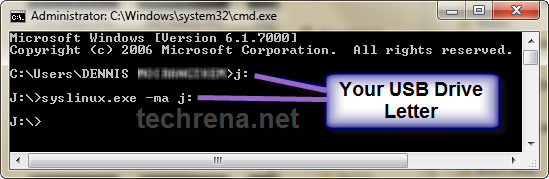
Step 2: Burn the ISO file to a CD. If you are using a USB drive, then mount the cd080802.iso file to a virtual drive. Open the Virtual Drive and Copy all the contents to your USB disk. If any error comes while copying just skip the file. Now to make the USB Drive Bootable open a Command Prompt(Press Start + R, Type cmd and enter) and type the following commands:

Sl. No.

Command:

Action:

1

j:

Enter

2

syslinux.exe –ma j:

Enter

Here j is my drive letter, you should enter your own drive letter.
View Commands Image
Step 3: Now start the System which you want to reset the password by putting the CD or the USB in the Computer. While start up you have to make sure that it boots up from the correct device i.e. from the CD or the USB. In order to do this go to your BIOS settings and change the boot order as CD or the USB drive as the first option. Or if you know the Boot menu key then press it and Boot from the correct device.

Note: Step 4 to Step 8 takes a very less amount of time. No need to worry!

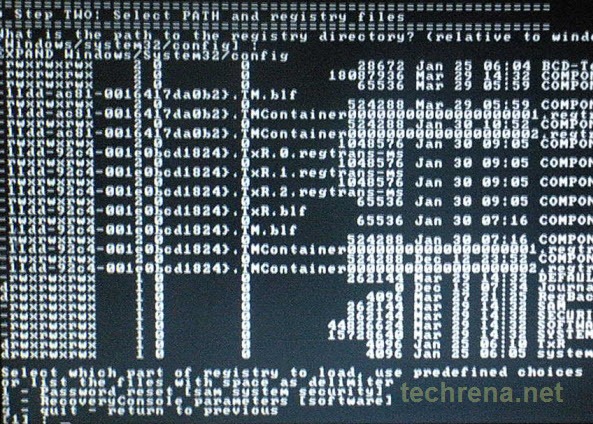
Step 4: After booting from the CD or the USB, press enter to continue the boot process. In the first step it will automatically select the disk where your windows is installed. Simply press enter to continue. In the Second Step it Will select the path and registry files. Select 1 for password reset (It will select 1 by default, just enter).
View Select Path Image
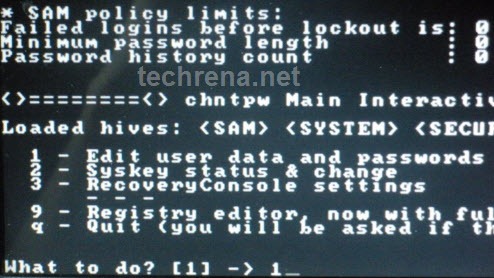
Step 5: Now after selecting the paths, It will ask “What to do?” Simply press enter as it will automatically select 1 for Edit User Password.
View Select Edit Password Menu Image
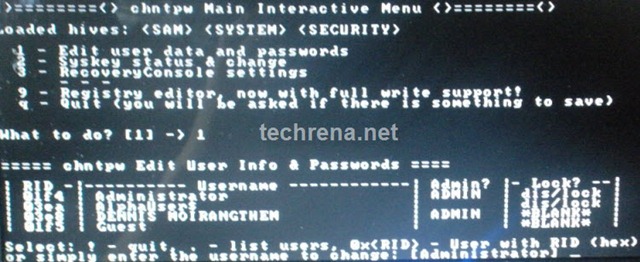
Step 6: It will show a list your system usernames and their password status. Now enter the username whose password you want to reset. It is case sensitive so, be careful and type what you see in the users list. (If the user is Administrator just press enter as it has already selected Administrator by default otherwise enter the correct username)
View Select User Menu Image
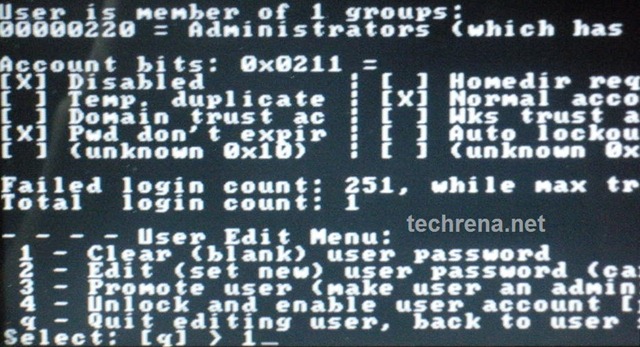
Step 7: It will show you User Edit Menu. Select 1 to clear the user password.
View User Edit Menu Image
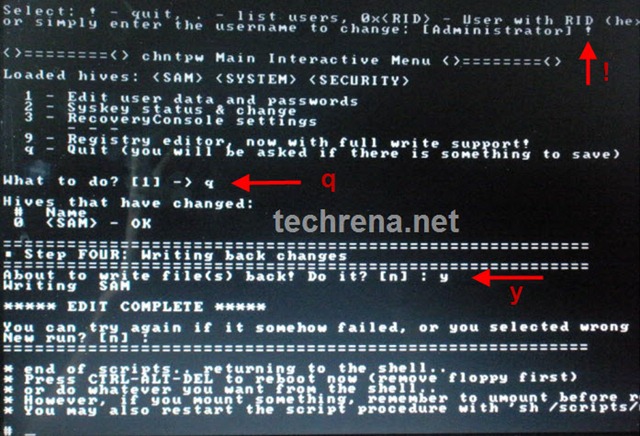
Step 8: It will clear the password. Now Enter “!” to quit from the User select menu. It will again ask “What to do?”. enter “q” to quit. Now in step four it will ask you to write the files or not. Enter “y” to write the files. It will write the files back. Now Simply press enter when it asks for “New run?” as it has selected no by default. The password reset has been successfully completed. Press the power button.
View the Final Step Imge
Now start the computer and you will find that it is not asking for password for the user you had selected. That’s it, you are done.

Important:

1. This method will remove your password not recover. If you do not want to reset the password, you can recover it. Visit: http://congdong-tinhoc.blogspot.com/2013/01/windows-password-recoverycrack-windows.html for password recovery.
2. The method has been tested for windows XP, Windows Vista and Windows 7 and all resulted in success.
3. This is for information purposes only. We are not responsible for any damages or illegal acts resulting from this information.
4. The information provided here should be used for legal purposes only.
5. USB Disk method will not work if your motherboard or BIOS does not support USB booting.

Wednesday, January 16, 2013

Paragon Backup & Recovery 2012 Free (Rev.2)

Back up selected partitions or your entire hard drive quickly and easily


In our experience free backup tools often have annoying restrictions, especially when they come from commercial companies who really want you to upgrade. Paragon Backup and Recovery 2012 Free is an exception, though: the program comes packed with functions and features, more than enough to satisfy the demands of many PC users.

After choosing the drive you'd like to back up, and the archive destination (which can be a local or network drive, CDs, DVDs or Blu-ray discs), for instance, there are all kinds of options on offer. So you can choose to exclude particular file types from the backup in a click or two; set your archive compression level; password-protect your backup for security; set up CD/ DVD/ Blu-ray disc burning options, and more.

A comprehensive scheduler means your backup job can be automatically run at system startup, logon, daily, weekly or monthly.

Switch to the Advanced Mode and you'll find even more options, including the ability to create differential backups of your drive, as well as a useful set of partitioning tools (there's everything you need to create, format, move, resize, hide, unhide, delete and otherwise organise your partitions).

None of this gets in your way, though - in fact you don't even get to see most of these options unless you go looking. If you're happy with the default settings then a helpful wizard will walk you through the process of setting up a backup job with the absolute minimum of hassle.

And restoration is just as straightforward. It's easy to restore anything from a single file within your backup to an entire image, and the program's Recovery Builder helps you build a bootable recovery disc so you'll be able to restore your backups even if your PC is corrupted and won't boot.

Of course it can only do this if you've remembered to create the disc in advance, though, so make that the very first task you carry out with Backup & Recovery 2012 Free: open the Advanced interface, click Tools > Recovery Media Builder, follow the instructions, and you'll soon be protected against data disasters.

Note that this is "revision 2" of Paragon Backup & Recovery 2012 Free, which now supports Windows 8 Release Preview.

How To Get Your Serial Code

Paragon Backup & Recovery 2012 Free requires registering before you'll be able to receive the product key and serial number necessary to get it running. Nothing too onerous: just click the Registration button during installation and enter your name, country and email address, and you'll be sent the details via email within a few moments.

Verdict:
Paragon Backup and Recovery 2012 Free comes packed with options, yet remains easy to use, and the program maintains its position as the best free drive backup tool

EASEUS Todo Backup Free 5.5

Back up both files and entire partitions with this two-in-one backup tool


There’s never been a better time to be in the market for a free backup tool. These days, you need two types of backup: one for your files and documents, and the other for your system. EASEUS Todo Backup Free attempts to straddle both spheres, and does so with reasonable success.

The great news about EASEUS Todo Backup Free is that it’s actually a rebadged version of Todo Backup Home, which was previously sold as a commercial product. It’s capable of backing up everything from selected files and file types to entire partitions or drives (there’s also cloning tools included for upgrading from one drive to another), with scheduling options and support for incremental updates so backups are kept as small and efficient as possible.

There are lots of recovery and restore options too, such as being able to browse disk and partition backups for individual files and folders, plus an option for creating a WinPE-based recovery disc that allows you to use the program outside of Windows, making it perfect for drive upgrades or recovering crashed systems.

It’s all straightforward to use and works admirably. There are some gripes though – although it’s possible to back up certain email-based files using the file types option, we’d prefer a more explicit email backup option along with selected program settings and – for the geeks among us – Registry settings too.

Verdict:
A competent tool for combining both file- and image-based backups within a single program gets a welcome raft of new and improved features in this update.


Friday, December 28, 2012

With HP USB Disk Storage Format Tool 2.2.3

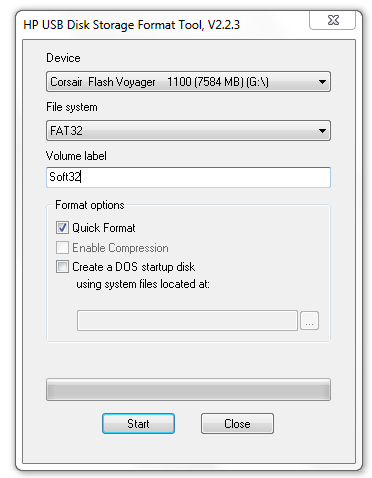
With HP USB Disk Storage Format Tool you can select the device which you wish to format and the file system.


Screenshots of HP USB Disk Storage Format Tool


Download Now!HP USB Disk Storage Format Tool 2.2                                                                                                       (Wait for 5 sec. And click on skip ad to get download link)


HP USB Disk Storage Format Tool Editor's Review


Where would we be without our USB flash drives? Our music, pictures, work files, personal data, and just about our entire life’s history are often stored on the modern day equivalent of the floppy disk.
We love their portability, file space, and universal compatibility, and so too does Hewlett-Packard’s USB Disk Storage Format Tool. 

What is it and what does it do?

The HP USB Storage Format Tool is a little godsend for those who use USB flash drives as recovery devices because it is capable of formatting virtually any USB flash drive in a diverse range of systems. And here’s the best bit. Not only does it install and run very smoothly, the interface looks exactly like the standard format which is built into Windows. The key difference being where the Windows version does not have the option of selecting USB drives to format, the HP USB Storage Format Tool does. Big difference huh?
This funky piece of software also offers users the option of creating a DOS start-up disk, by either using the internal MS-DOS system files, or the ones located at a specific path. 
Oh! and before we forget, this format tool also allows you to rename all your USB flash drives in any way you want and offers a NTFS volume label for format which enable you to create a FAT32 volume which is bigger than 32GB. Cool hey?
Pro's: USB flash drives just got that little bit better. 

Con's: We haven’t found any yet!

Conclusion: The HP USB Disk Storage Format Tool blows us away because by deleting space used on flash drivers that cannot be removed in the traditional way, and creating bootable USB drives it brings enhanced power and functionality to your system without costing you the earth. If you use flash drives, then don't delay and get it today.


HP USB Disk Storage Format Tool Publisher's Description


With HP USB Disk Storage Format Tool you can select the device which you wish to format and the file system. You also have the possibility of creating a DOS start-up disk, by either using the internal MS-DOS system files, or the ones located at a specific path. HP USB Disk Storage Format Tool allows you to create a FAT32 volume which is bigger than 32 GB.

The difference between the HP USB Disk Storage Format Tool and the format tool found in Windows is the fact that HP USB Disk Storage Format Tool allows you to select USB drives, while the Windows version is does not have this option. 

Also the Windows format tool does not offer a NTFS volume label for format.